
View the test results
There are several ways to view a test's results in MOXO. Choose the one that suits you best.
Option 1: From the Dashboard
- Click
Dashboard in the left-hand menu.
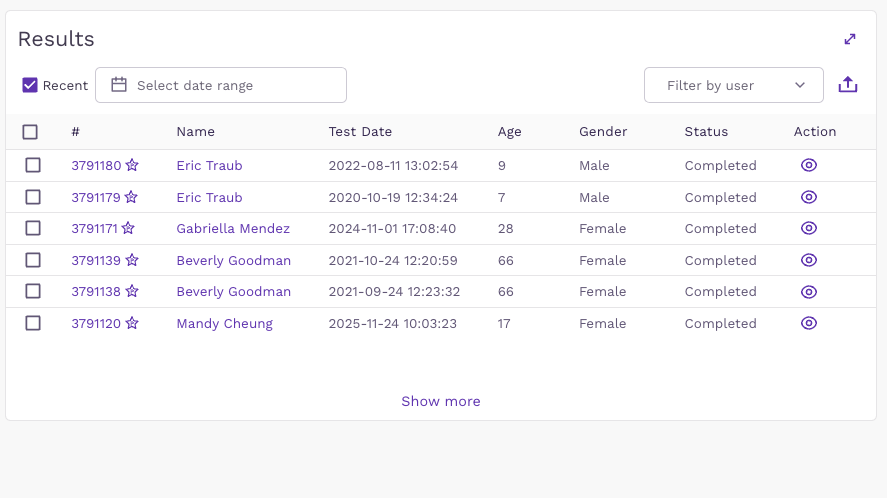
- The Results panel shows your most recent tests: test number, client name, test date, age, gender and status. You can narrow the list with Select date range or Filter by user, export it, or click Show more to see additional tests.
- Find the test and click
in the Action column to open the test's results.
Option 2: From the Tests list
- Click
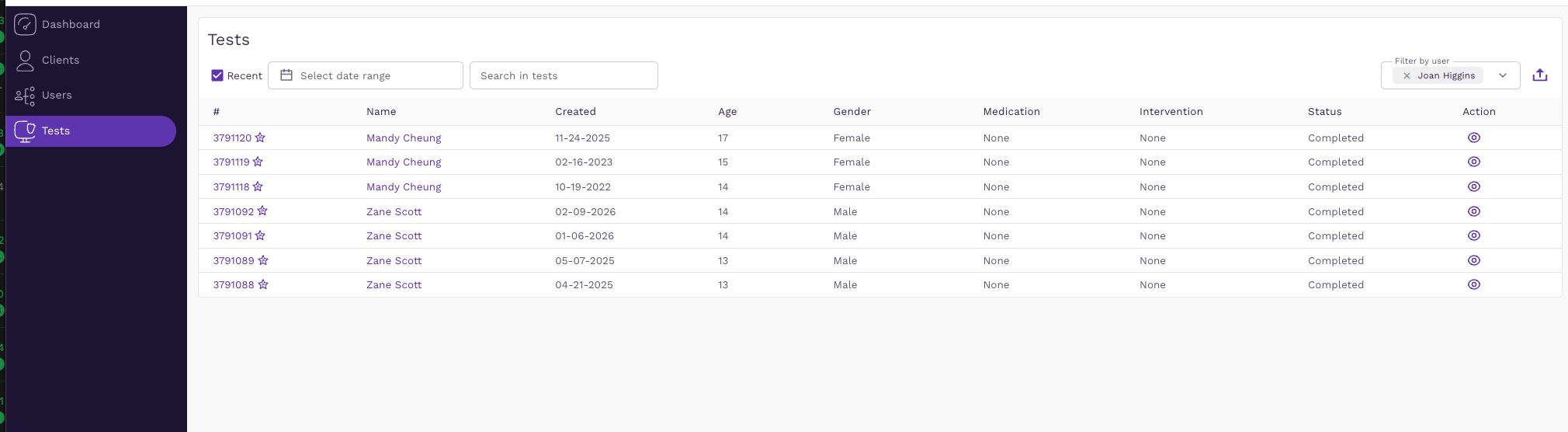
Tests in the left-hand menu to see all the tests in the system.
- Find the test (search, select a date range, or filter by user) and click
to open the test's results.
Option 3: From the client's page
- Click
Clients in the left-hand menu, find the client by name and click their client number (#) to open the client's page. The Recent Tests section lists all the tests the client has taken.
- To view the results of a specific test, click
.
- To compare results, select two tests with Completed status, then click Compare.

