
Add a client
Create a New Client
Add a new client by clicking the "+ Client" button on your Dashboard, or from your Clients page. This opens the New Client form shown below.
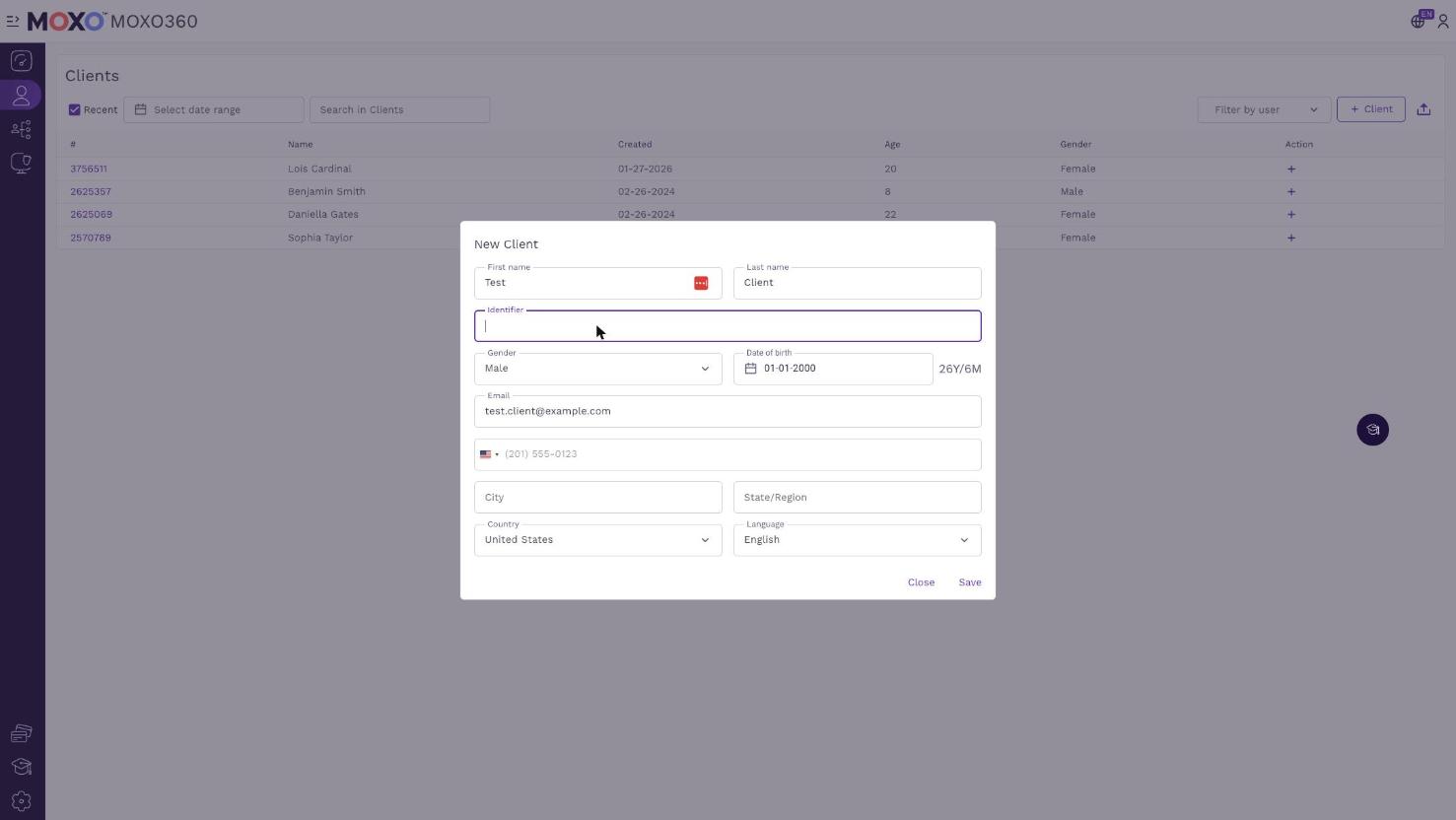
New Client Form
Fill out the client's details: first and last name, an optional identifier, gender, date of birth, email, phone number, address, country, and language. Fields marked as required must be completed before you can save.
Two fields have a special effect on testing: the Date of Birth determines which version of the Moxo test is used (the Kid's version for ages 6-12, and the Teens & Adults version for ages 13-99), and the Language determines the presentation language of the test instructions.
When you're done, click Save.
Client Background Form
After you save a new client, you're taken directly to the Client Background Form. Here you can record any pre-existing diagnoses or suspected disorders for that client, organized by category (Mood & Depressive Disorders, Anxiety Disorders, Neurodevelopmental Disorders, Psychiatric and Related Disorders, and more). Each condition defaults to "NA" until you select Positive, Negative, or Suspected diagnosis. Click Save when you're finished.
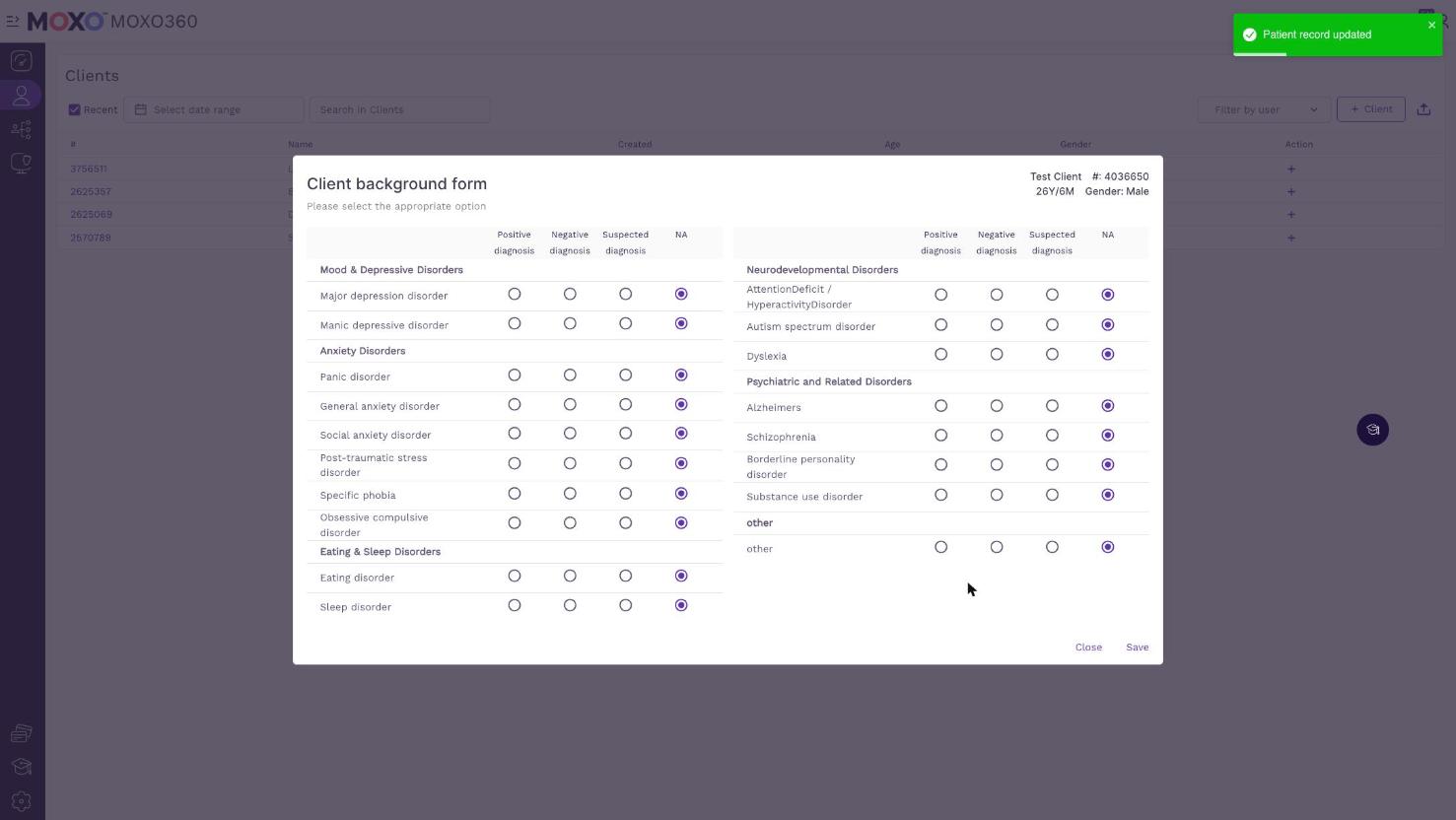
You can always return to this form later from the client's details page by clicking the "Client background form" link.
Editing a Client's Details
To edit a client's details at any time, open their details page by clicking their number in the Clients list (use the search bar to quickly find a client by name or ID). You can update any field here, including a "+ Test" button to assign a new test and a Recent Tests table showing their test history. Click Save once you're done editing.
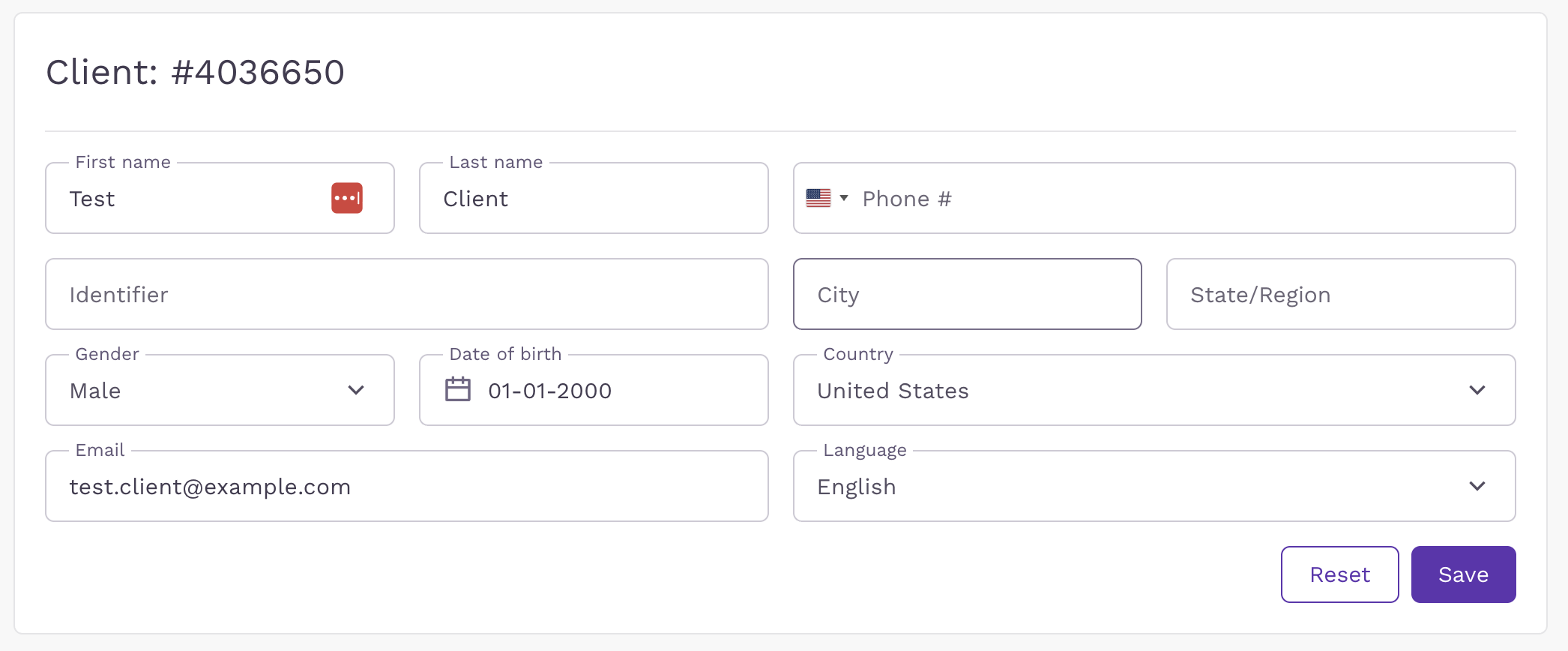
Please note: changing the Date of Birth can change which test version applies. If it moves the client's age across the 13-year threshold, delete any not-yet-started tests and recreate them.
Once you've completed these steps your client's profile is set up and you're ready to add tests.