
Navigating the Dashboard
What's on the Dashboard?
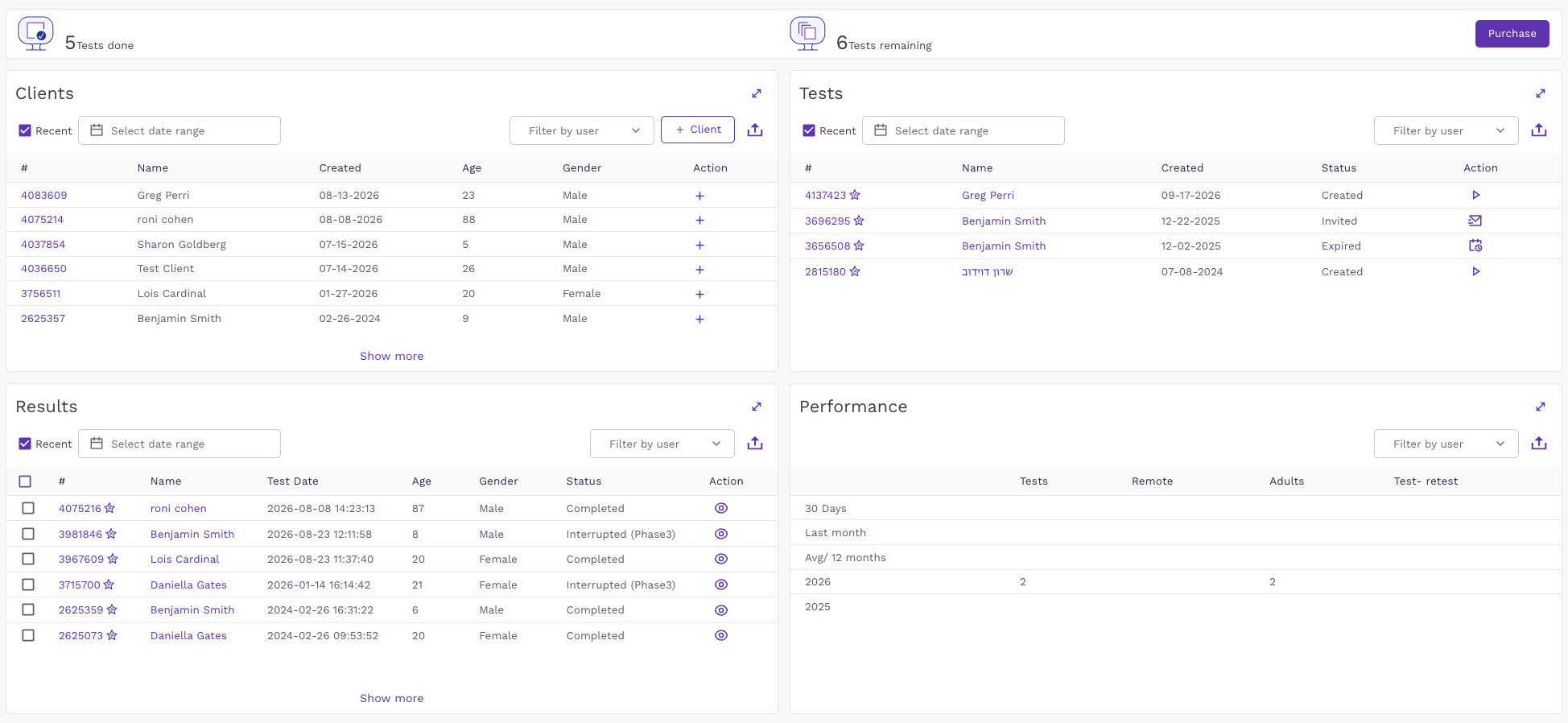
The dashboard is designed for intuitive navigation, making it easy to manage clients, assign tests, and analyze results.
Header Section:
- Displays your account type (e.g., "MOXO360") on the top-left.
- Your username and account number are shown on the top-right.
Left-hand menu
Use the menu on the left to move between the main areas of the system: Dashboard, Clients, Users and Tests.
Top banner
The top banner allows you to track your progress with a clear summary:
- Tests done: see how many tests have been completed.
- Tests remaining: know exactly how many tests you have left.
Need more tests? Simply click the "Purchase" button on the right side of the banner.
Dashboard panels
The dashboard has four panels. Each panel has an expand icon (top-right corner) to open it in full view, and most panels include these tools:
- Recent: when checked, shows only the most recent items.
- Select date range: filter the list by date.
- Filter by user: show items for a specific user in your account.
- Export: download the list using the export icon.
Clients (top-left):
- Lists your recent clients, showing the client number (#), Name, Created date, Age and Gender.
- Click + in the Action column to create a new test for that client.
- Click "+ Client" to add a new client, or "Show more" to see additional clients.
Tests (top-right):
- Lists tests that have been created but not yet completed, showing the test number (#), Name, Created date, Status and Action.
- Each test shows its current status, with a matching action icon:
- Created: the test is ready. Click Run Test (play icon) to start it.
- Invited: an invitation was sent to the client to take the test remotely. Click Resend (envelope icon) to send the invitation again.
- Expired: the test was not completed in time. Click Reschedule (calendar icon) to schedule it again.
Results (bottom-left):
- Lists recent tests with results, showing the test number (#), Name, Test Date, Age, Gender and Status.
- The Status shows whether the test was Completed or Interrupted (including the phase in which it stopped, e.g., "Interrupted (Phase3)").
- Click the eye icon in the Action column to view the test results.
- Click "Show more" to see additional results.
Performance (bottom-right):
- Summarizes your account activity: the number of Tests, Remote tests, Adults and Test-retest.
- Figures are shown for the last 30 days, last month, the 12-month average, and per year.