
Assign a test
Assign a Test
You can add a test either from the Dashboard or from the client's details page. Once a client's information has been added, go to where their name appears and click the "+ Test" button to open the New Test form.
New Test Form
Fill in the Medication and Intervention fields as applicable, then use the Remote Test toggle to choose how the test will be administered.
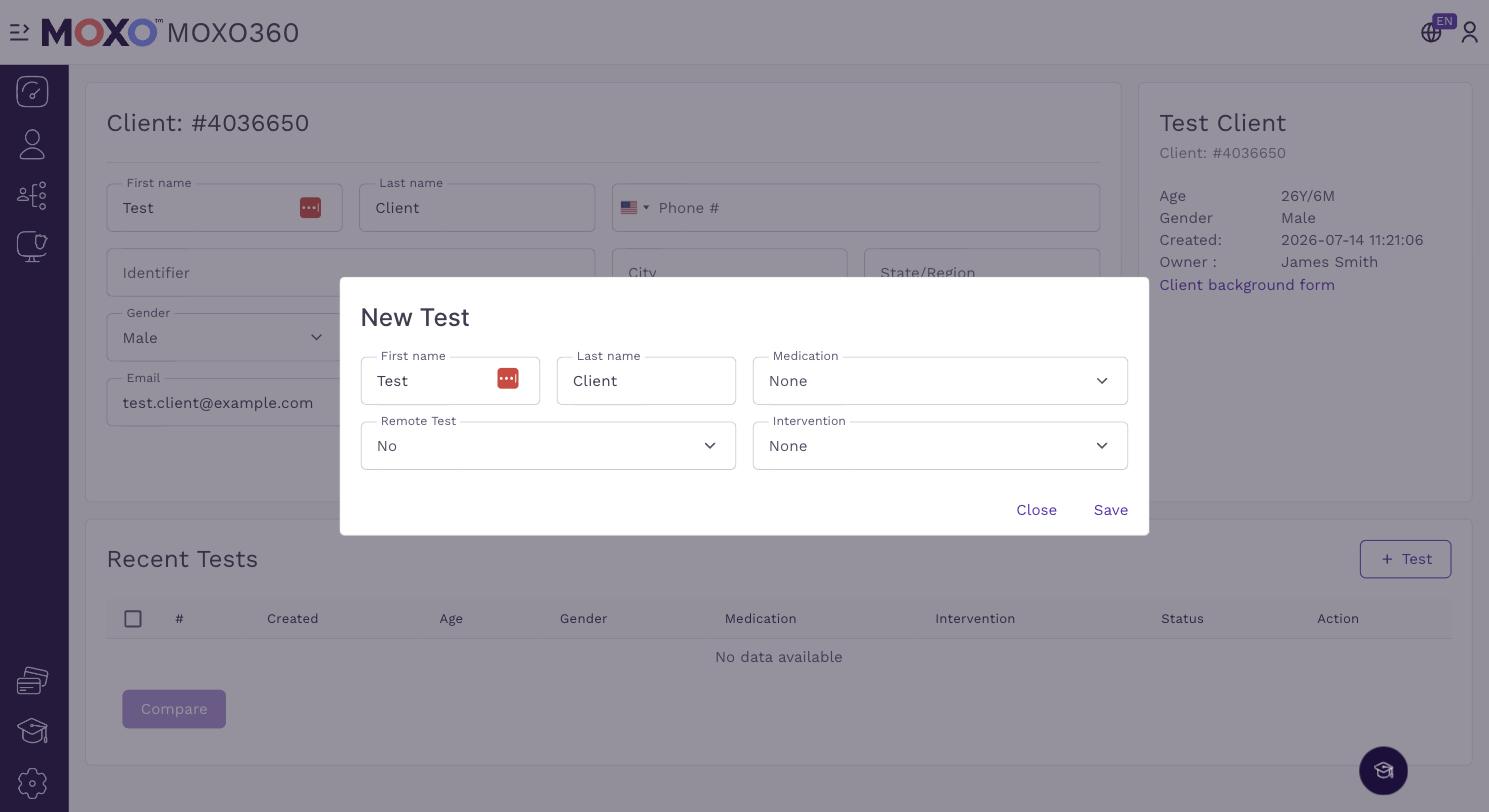
If Remote Test is set to "No," the test will be run in-clinic. If it is set to "Yes," a "Schedule for later" option appears, letting you choose whether to send the test invite immediately or schedule it for a specific date, time, and time zone.
You can always return to this form later from the client's details page.
Local Test
If Remote Test is set to "No," the test runs in-clinic on your own device. Once you save the New Test form, the test is ready to be run — see Administering a MOXO test for the full walkthrough.
Remote Test
Setting a Remote Test
When Remote Test is set to "Yes" and "Schedule for later" is also set to "Yes," Date & Time and GMT fields appear so you can pick exactly when the remote test invite should be sent to the client.
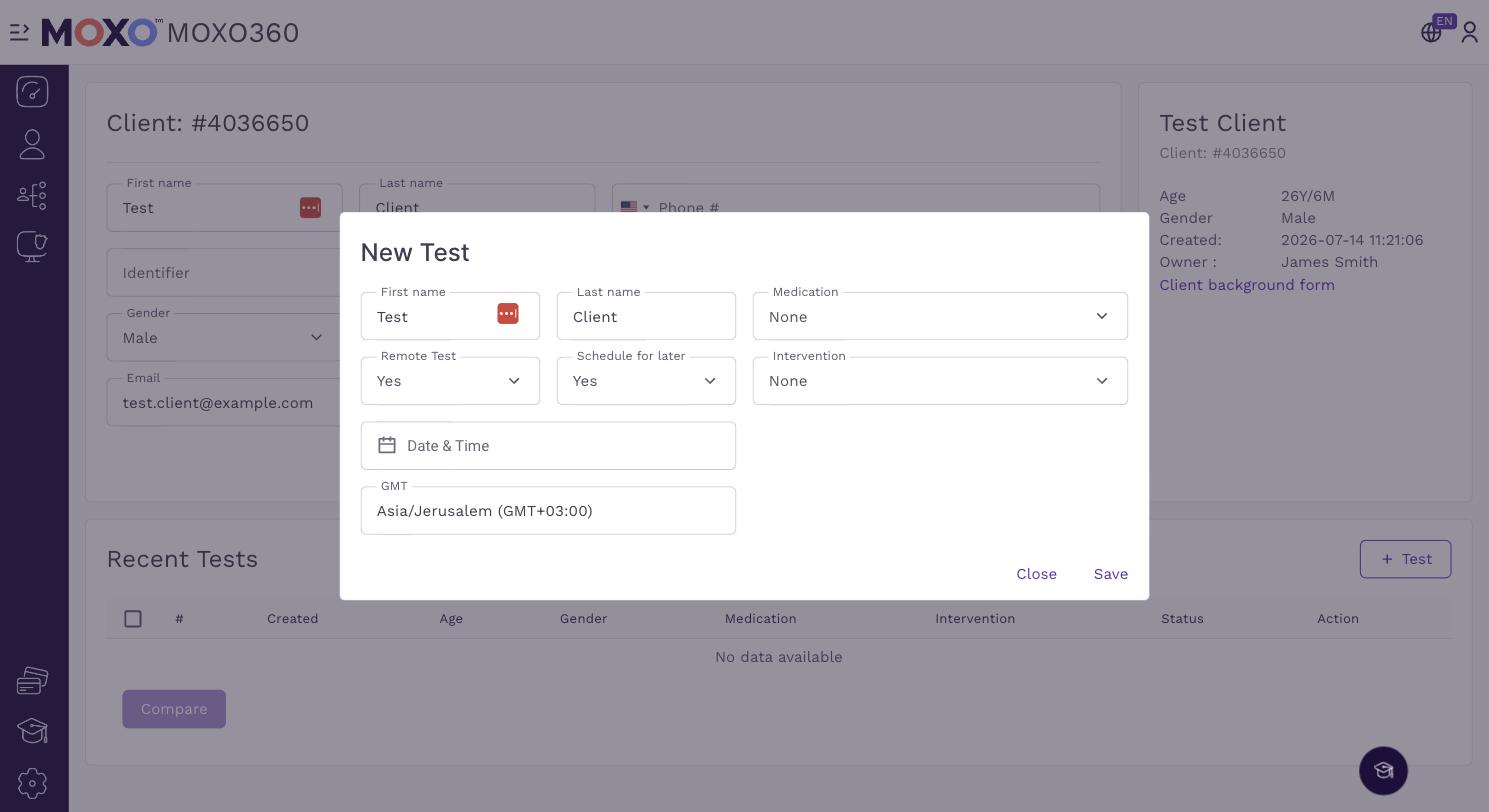
If "Schedule for later" is left as "No," the remote test invite is sent as soon as you save.
Please remember to fill in all the required information and click Save once you're done. After you save, the test is ready to be run.
Before Sending the Invitation
Talk with the your client and make sure conditions are suitable for the test: a quiet, isolated room; stable internet; and a desktop or laptop computer (the test cannot be done on mobile or tablet). Have them close all background applications running on the computer, such as WhatsApp, Email, etc., before beginning.
Please note that the remote link invatation is valid for 45 min.
Sending the Invitation
- Make sure you've entered the client's correct email address before saving.
- If the examinee doesn't receive the email, have them check their spam folder.
- Confirm whether they should take medication before the test, and when — the same applies if a second test needs to be taken.
- Send each test's link right before it starts; remember it's only valid for 45 minutes.
- Walk the parent/examinee through the email so they understand the requirements.
- For children (ages 6-18), talk with the parent about observing the child during the test — see Observation below.
Observation
Observation can be conducted by either yourself (via computer camera or an additional video device) or by someone present in the room with the examinee. If someone else is observing, make sure to instruct them on how to do so:
- Use the observation form sent over email.
- Sit diagonally behind the examinee.
- Don't interfere or assist.
- Send the observation form back to the clinician.
At the End of the Test
The examinee should see a completion message. If they see an error instead, or no message at all, have them contact you by phone.
Common Issues During the Test
We're also available for live support if needed. Still, here are a few common issues worth knowing:
- No email received – Check the spam folder. Verify the email address is correct (you can edit it via "Edit patient").
- Clicked the link, nothing happens – Make sure it's being run on a desktop or laptop (not supported on mobile or tablet). We recommend Chrome; Firefox, Edge, and Safari are also supported. Check that the internet connection is stable (e.g. via speedtest.net). Confirm fewer than 45 minutes have passed since the invitation was sent.
- Test stopped mid-way – The test stops automatically after 2 or more minutes of inactivity.
- Finished the test but got no confirmation results were sent – Instruct the examinee not to close the browser. Check that the internet connection is stable. If, after checking the connection, a "Resend result" button appears on screen, click it to send the results to the clinic.
Need Help?
If you experience any technical issues or have questions about your test, please don't hesitate to reach out to our support team: support@moxo.com
Sending Results
After adding the observation to the report summary, you can download the results report as a PDF and email it to the examinee.
Next: Administering a MOXO test